
Fees & Accounting
Financial module — fee categories, per-class pricing (Ivorian MESRS system), optional services and targeted assignments.
The Comptabilité module centralises every financial setting at the institution: fee catalogue, per-class amounts, optional services. It's typically owned by the bursar, but the super-administrator has full access too — handy for closing out the initial setup before the finance team is on board.
The fee architecture rests on three objects:
- Fee category — the catalogue (Tuition, Enrollment, Cantine, Transport…) with one binary decision: mandatory (every enrolled student must pay it) or optional (the student chooses whether to subscribe).
- Per-class configuration — for each mandatory category, you set the exact amounts for every
filière × study levelpair (the Ivorian system also splits students by AFFECTÉS / RÉAFFECTÉS / NON AFFECTÉS — government-affectation tiers). - Optional service formulas with assignments — for optional categories, you create formulas (e.g., Repas complet, Plat de résistance) and target eligible students (everyone, by filière, by level, or by specific class).
The Comptabilité module in the sidebar
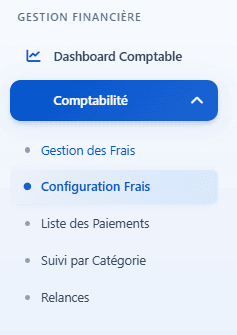
In the sidebar, find the GESTION FINANCIÈRE section and open the Comptabilité dropdown.
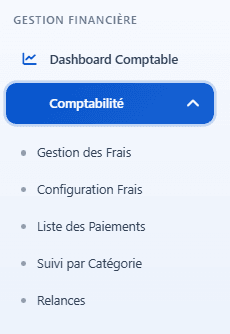
Five entries in total. For initial setup, only the first two matter: Gestion des Frais (the catalogue) and Configuration Frais (the per-class matrix). The other three (Liste des Paiements, Suivi par Catégorie, Relances) are for the bursar's day-to-day work.
Overview: Gestion des Frais
Click Gestion des Frais. The page gives you the complete catalogue state at a glance.
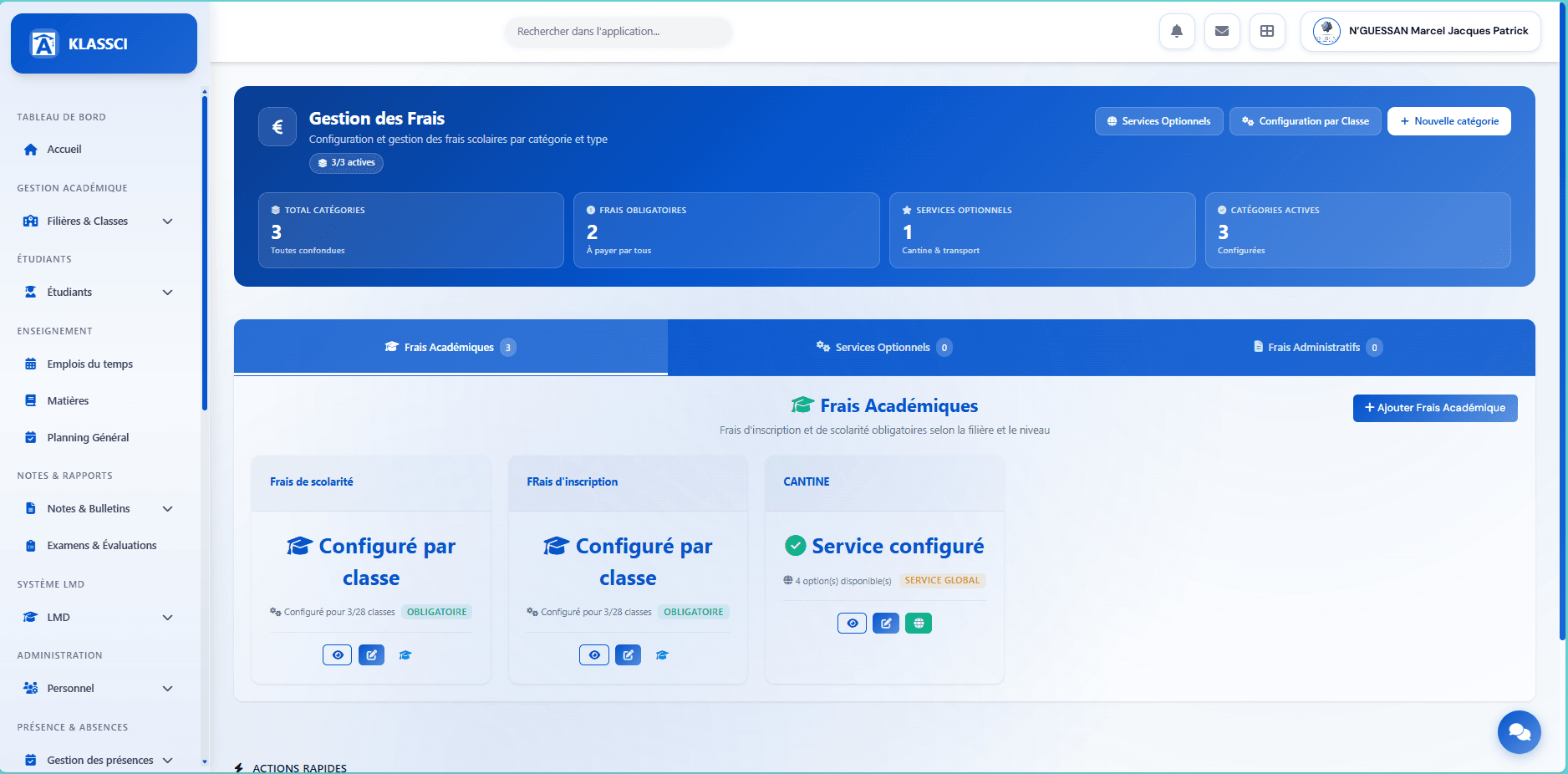
The blue banner exposes 4 indicators (total categories, mandatory fees, optional services, active categories) and three global actions in the top right:
- Services Optionnels — direct shortcut to optional-formulas management (section below)
- Configuration par Classe — shortcut to the mandatory-amounts matrix (section below)
- Nouvelle catégorie — the button we'll use right now
Below the banner, three tabs visually split the catalogue:
- Frais Académiques — enrollment and tuition fees, mandatory by filière + level
- Services Optionnels — à-la-carte services (cantine, transport, accommodation)
- Frais Administratifs — paperwork, certificates, special files
Each category card exposes its configuration status ("Configuré par classe" with a 3/28 counter when the matrix isn't done, "Service configuré" for an active optional service), an OBLIGATOIRE or SERVICE GLOBAL badge, and three action buttons: view, edit category, or (shortcut to the business config — per-class for mandatory, formulas for optional).
Create a fee category
Click + Nouvelle catégorie. The full-page form opens, split into four sections.
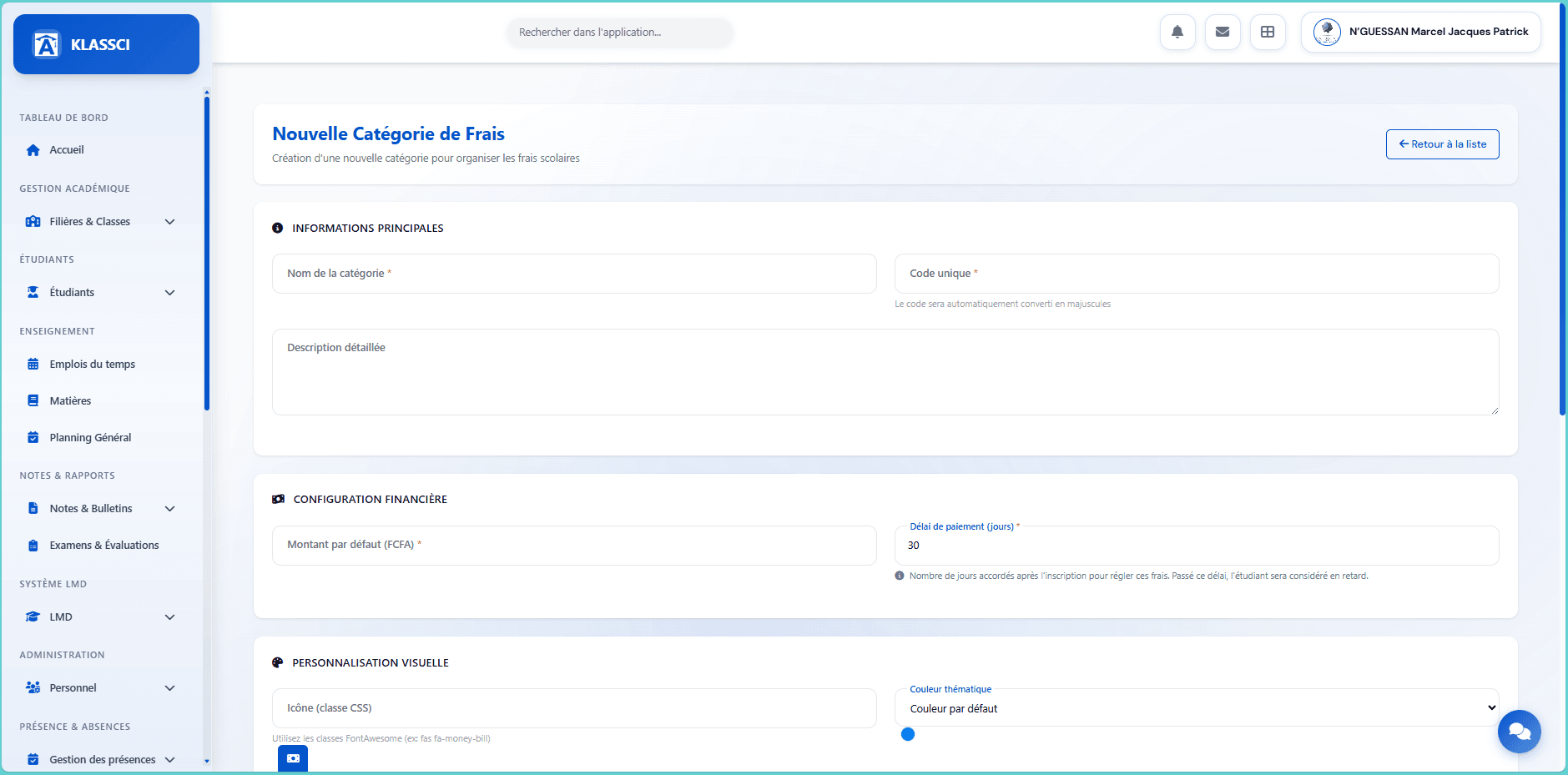
Main information
- Nom de la catégorie (required) —
Frais de scolarité,Cantine,Transport. Shows up on report cards, exports, and in the student portal. - Code unique (required) — a short code (
SCOLARITE,CANTINE,TRANSPORT). KLASSCI auto-suggests an uppercase version derived from the name as soon as you tab out of the Name field (only when the Code field is still empty), but you can override it manually. Used as the stable technical identifier in imports/exports and artisan commands. - Description détaillée (optional) — free-form paragraph.
Financial configuration
- Montant par défaut (FCFA) (required) — indicative amount. Refined per class for mandatory fees, or per formula for optional ones.
- Délai de paiement (jours, default 30) — number of days after enrollment before the student is flagged as overdue. After that, the Relances module picks them up as a debtor.
Visual personalisation
- Icône (FontAwesome class) — for example
fas fa-money-bill,fas fa-utensils,fas fa-bus. Renders on dashboards and cards. - Couleur thématique — pick from a 6-value Bootstrap palette: Blue (Primary), Green (Success), Cyan (Info), Orange (Warning), Red (Danger), Grey (Secondary). Used to distinguish categories on dashboards and cards.
Advanced configuration — the most important decision
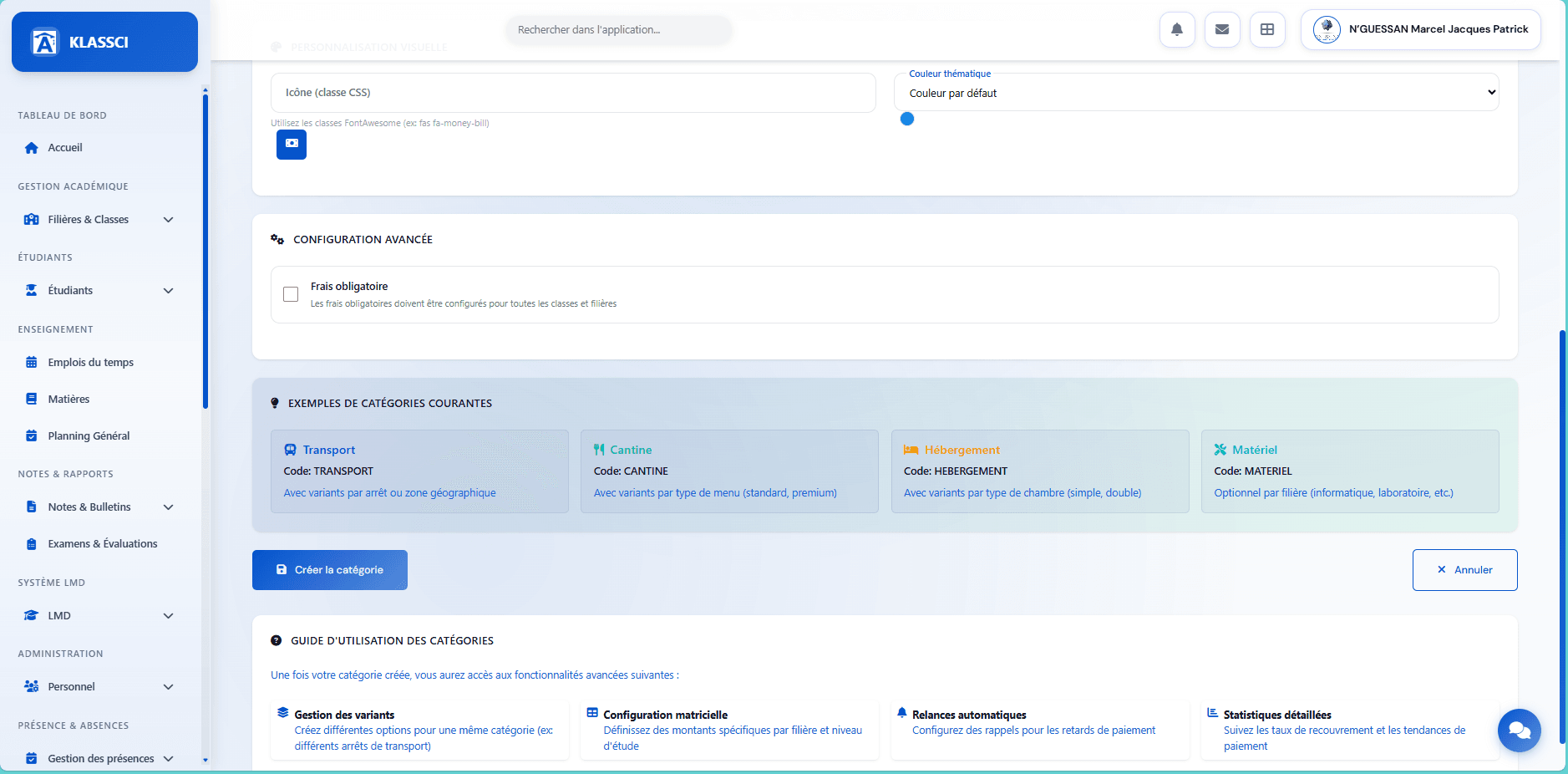
A single checkbox, but it changes everything:
- Frais obligatoire checked — every enrolled student must pay it, regardless of choice. The default amount entered above applies automatically to every class; you can later override that amount for specific classes (e.g., if BTS1 and the Licence don't share the same enrollment fee).
- Frais obligatoire unchecked — the category becomes an optional service. You no longer set per-class amounts; instead you define formulas that eligible students can choose to subscribe to or not.
The pre-filled examples at the bottom (Transport with stop-based variants, Cantine with menu-based variants, etc.) give you a sense of the typical granularity. Click Créer la catégorie. You're back on the list with your new entry.
Override mandatory amounts per class
The default amount of a mandatory category (entered when creating the category) already bills every student. The per-class matrix exists to override that default for specific classes — for example Frais d'inscription defaulting to 150 000 F CFA but raised to 200 000 F CFA for Licence and Master classes. Three entry points to the matrix page:
- The Configuration par Classe button in the Gestion des Frais header
- The button on a mandatory category's card (direct shortcut)
- Sidebar → Comptabilité → Configuration Frais
The Configuration des Frais par Classe page
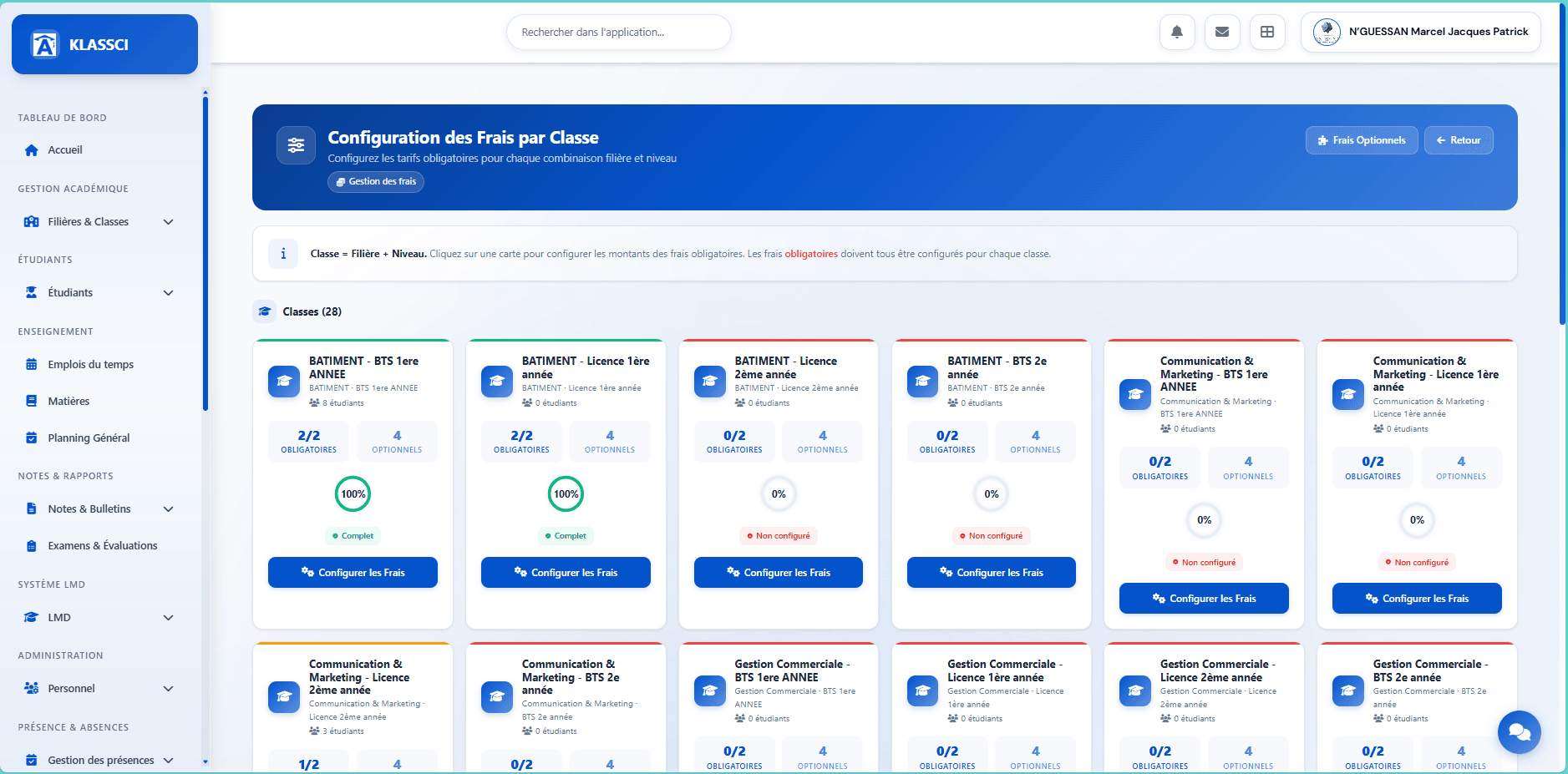
The page lays out every class in the institution as cards (28 here). Each card exposes:
- The class's full name (
BATIMENT - BTS 1ere ANNEE,Communication & Marketing - Licence 1ère année…) - Filière and study level as a breadcrumb
- Number of students already enrolled
- An Obligatoires counter (e.g.,
2/2= all configured,0/2= nothing yet) and an Optionnels counter (display only — no input here) - A completion percentage with a three-state badge: Complet (green, fully configured), Partiel (orange, started but incomplete) or Non configuré (red, nothing done)
- A blue Configurer les Frais button
Cards at 100% Complet (green border) are ready; Partiel ones (orange) have a partial matrix that needs finishing; Non configuré ones (red) still need input.
Click Configurer les Frais on any incomplete class.
The input modal: the Ivorian MESRS system
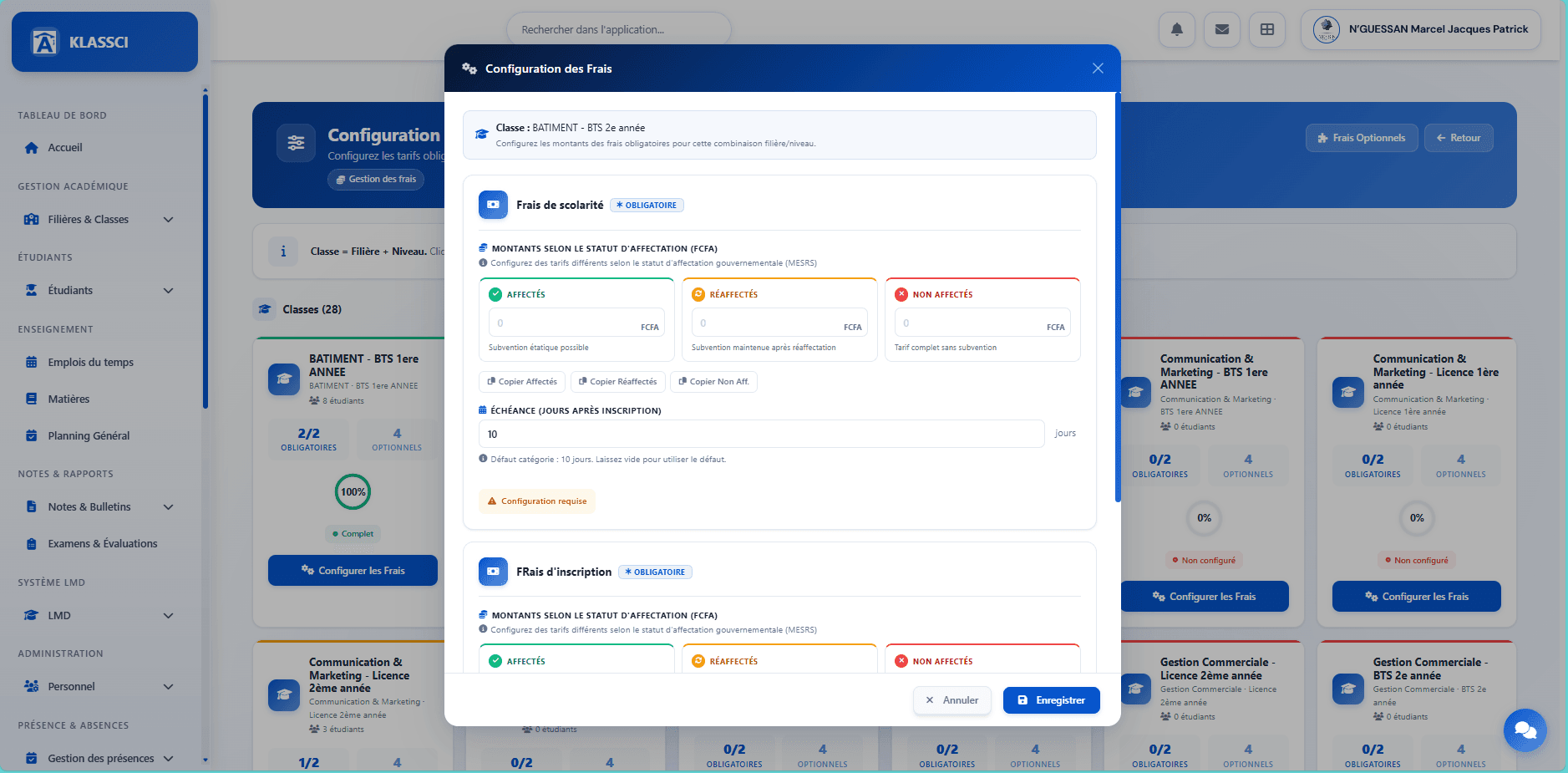
The modal lists every mandatory fee you created in the previous section, and for each one you enter three amounts — one per government-affectation status:
- AFFECTÉS — students assigned to your institution by the MESRS, with possible state subsidy
- RÉAFFECTÉS — students whose subsidy is preserved after a reassignment
- NON AFFECTÉS — students paying the full price, without subsidy
Three buttons — Copier Affectés / Copier Réaffectés / Copier Non Aff. — propagate the value of the named column to all three columns (Affectés, Réaffectés, Non Affectés) in one click. For example: enter 150 000 in NON AFFECTÉS and click Copier Non Aff., all three columns line up on that value. Handy whenever the same amount applies to every status.
The Échéance (jours après inscription) field adjusts the delay for the current configuration. Leave it blank to use the category's default delay.
Côte d'Ivoire-specific. The MESRS (Ministère de l'Enseignement Supérieur et de la Recherche Scientifique) affectation system distributes high-school graduates across institutions and partially subsidises their studies. The three columns let you differentiate prices per status; if that doesn't apply to your offering, enter the same value everywhere.
Click Enregistrer. The modal closes and the class card updates: counter to 1/2 or 2/2, percentage recomputed, badge flips to green when everything is filled in.
Configure optional fees (à-la-carte services)
For non-mandatory categories (cantine, transport, activities…), the setup follows a different model: you define formulas within the category, then assign each formula to eligible students.
Two entry points:
- The Services Optionnels button in the Gestion des Frais header
- The Frais Optionnels button in the Configuration des Frais par Classe header
The Frais Optionnels page
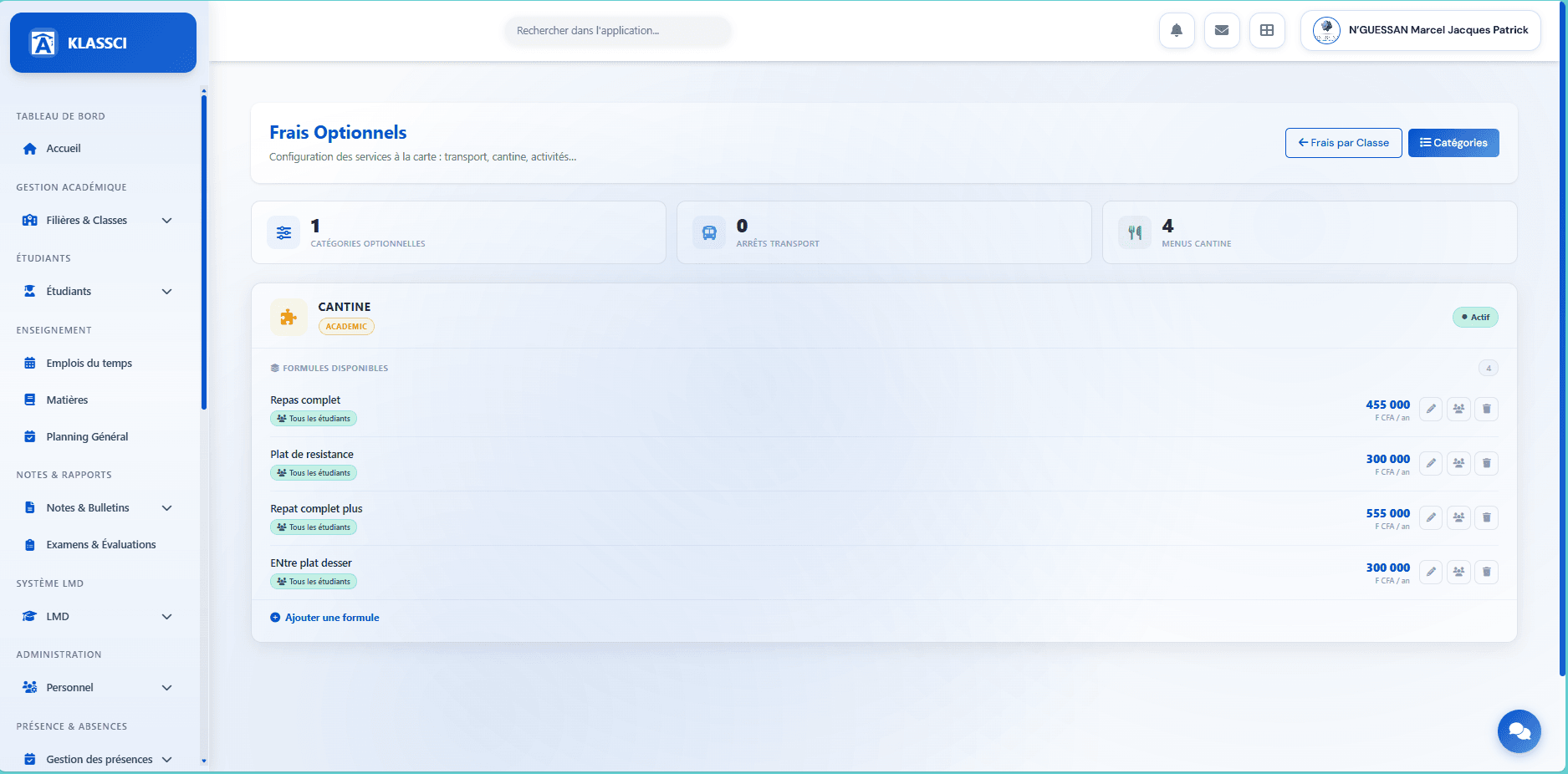
Every optional category renders as a section with its list of FORMULES DISPONIBLES. In the example, CANTINE exposes 4 formulas with their annual prices in F CFA. Each formula row has three buttons on the right: edit, assign, delete.
Add a formula
At the bottom of each category, the + Ajouter une formule button reveals an inline mini-form with three fields: Nom de la formule (Arrêt Centre-ville, Repas complet), Montant (F CFA) annual, Description (optional). Click + Ajouter on the right to commit.
Target eligible students with Assignments
A formula with no assignment is offered to nobody. Click the button (people icon — the middle one of the three actions) on the formula's row.
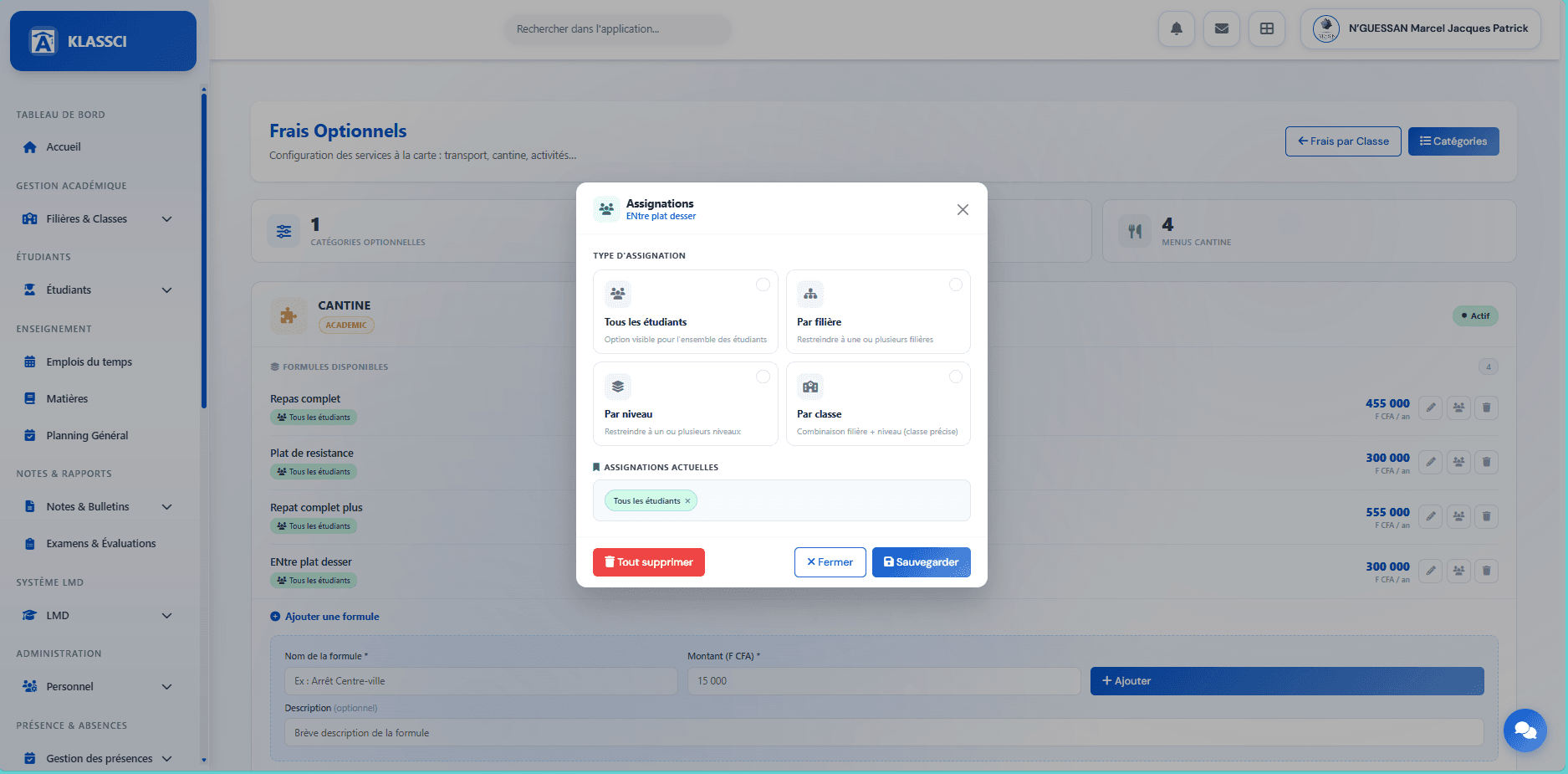
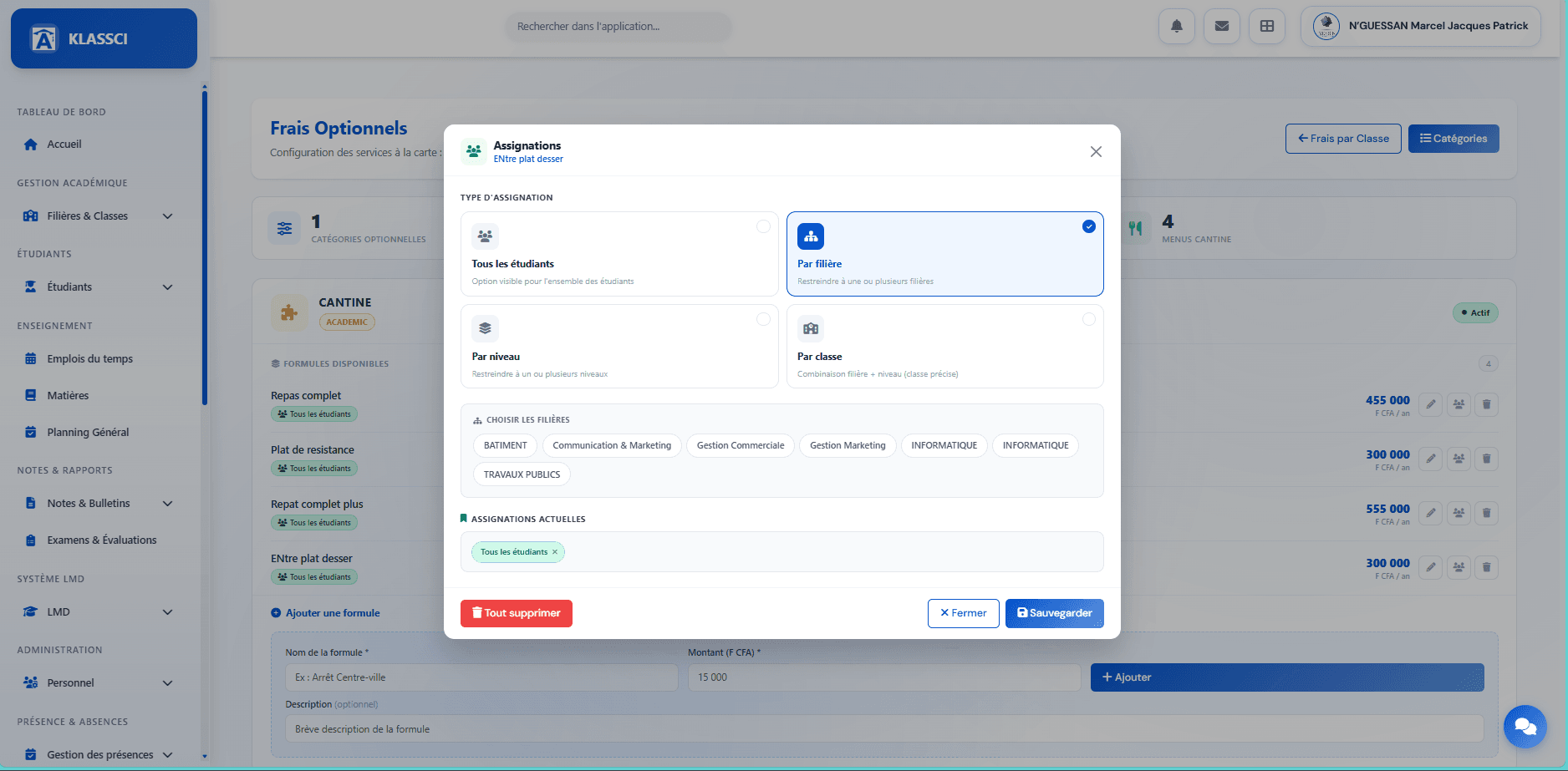
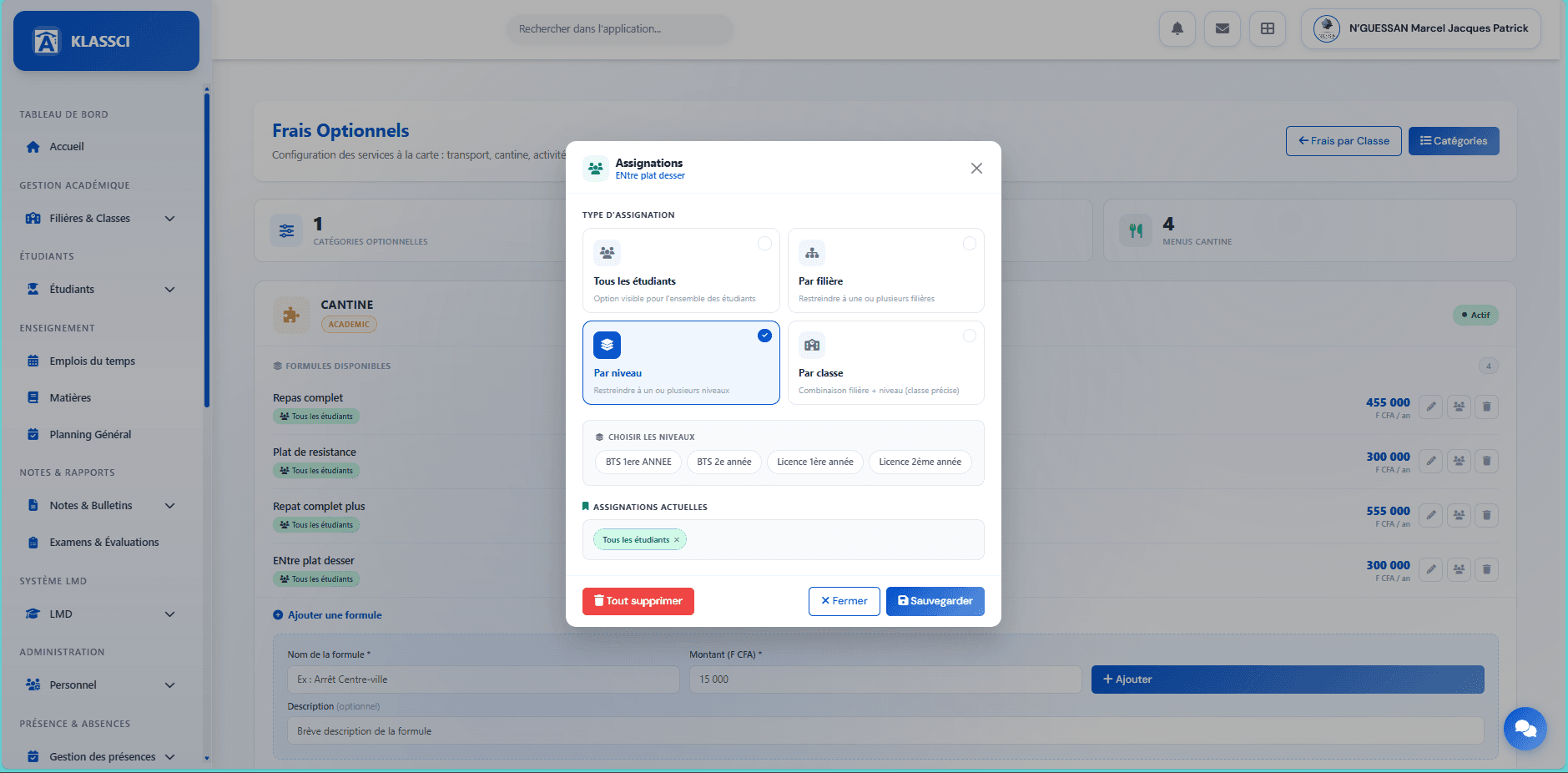
The Assignations modal exposes four targeting types, from broadest to most specific. None is selected by default at open — you have to pick explicitly:
- Tous les étudiants — the formula is offered to everyone, no filter.
- Par filière — restriction to one or more filières (BATIMENT, Communication & Marketing, INFORMATIQUE…).
- Par niveau — restriction by study level (BTS 1ere ANNEE, BTS 2e année, Licence 1ère année, Licence 2ème année).
- Par classe — combination of filière + level (the most restrictive). Ticking BATIMENT + BTS 1ere ANNEE = only the students enrolled in that exact class.
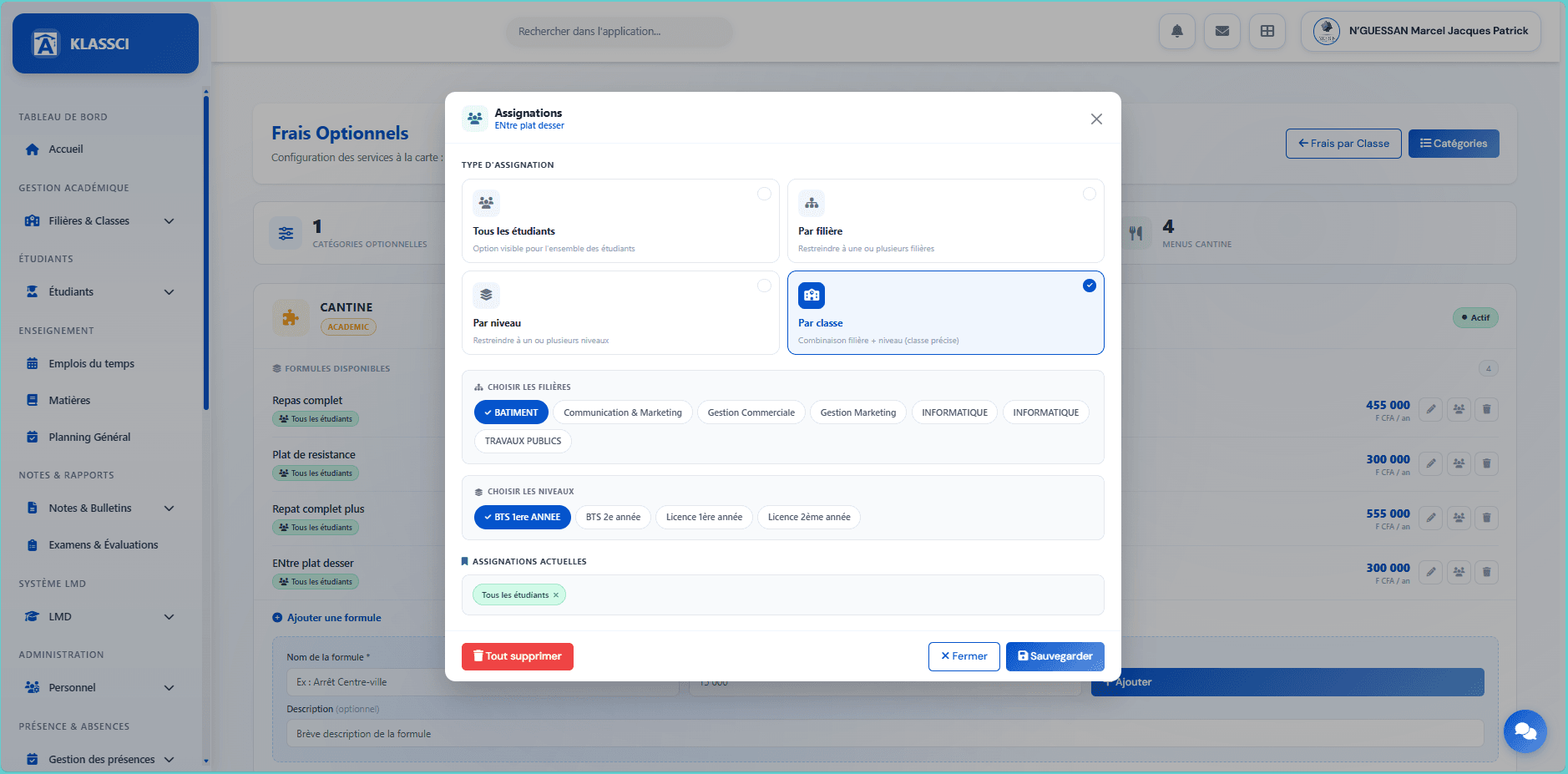
For each selected type, chips appear so you can tick the values you want. The ASSIGNATIONS ACTUELLES area at the bottom of the modal lists the active chips — each chip has a × to remove it individually.
Three buttons at the bottom:
- Tout supprimer — clears every assignment (the formula becomes invisible to students).
- Fermer — close without saving.
- Sauvegarder — persist the changes.
A formula with no assignment is invisible. If you create a formula but never open the Assignations modal, no student will be able to subscribe. Always check there's at least one chip in ASSIGNATIONS ACTUELLES before closing.
See also
- For the complete first-time setup of a new tenant, follow Super-administrator — initial setup.
- For day-to-day accounting operations (reminders, payments, exports), see Bursar — operations.